Analyze
The Analyze feature in erm4sn provides a set of powerful tools for system analysis, schema consistency checks, and identifying discrepancies across ServiceNow instances. This feature helps administrators and developers ensure data integrity, detect missing elements, and optimize schema structure.
Compare Meta
Compare table records across ServiceNow instances to identify configuration inconsistencies before they cause problems in production.
Overview
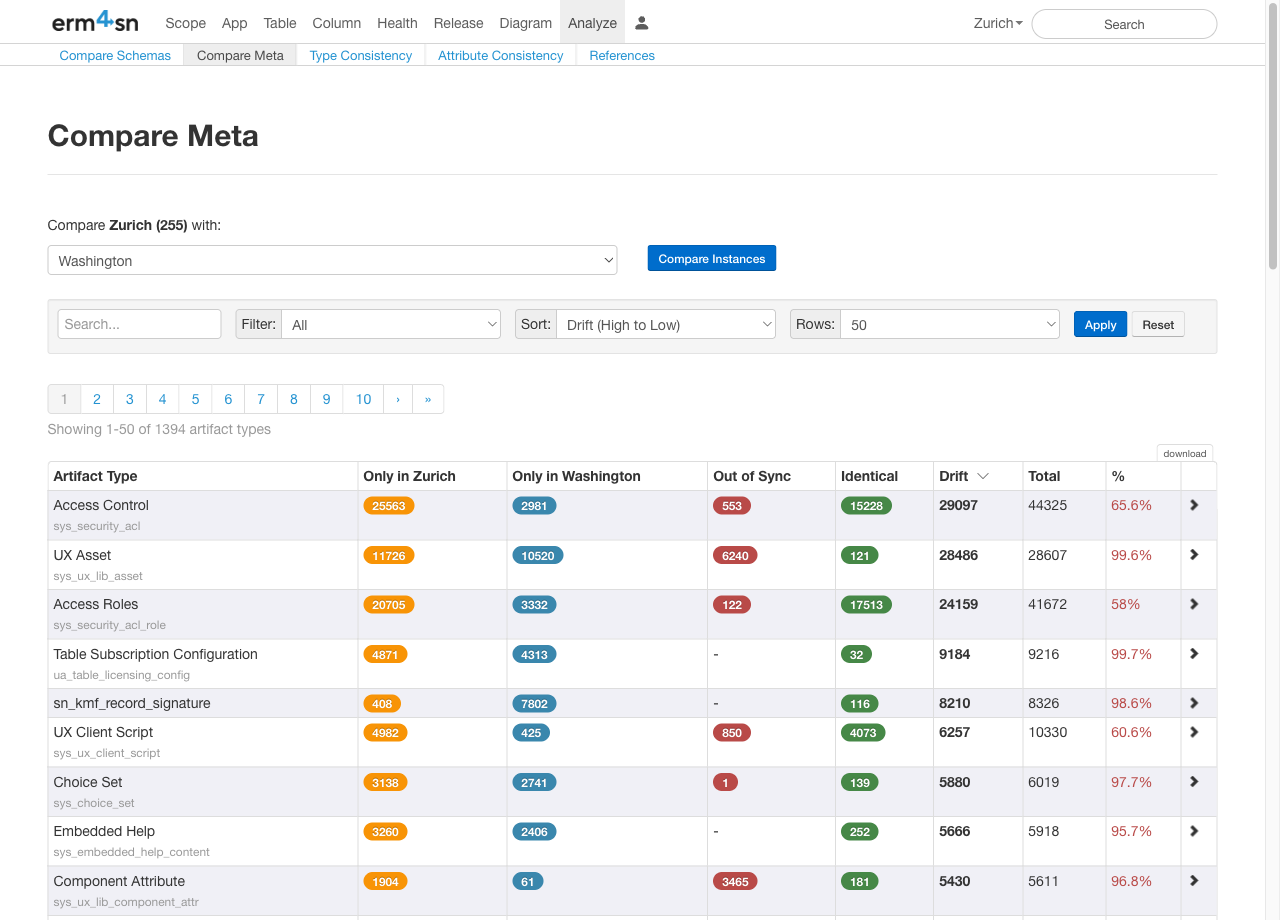
The Compare Meta tool analyzes configuration records across your ServiceNow instances, showing you exactly where drift has occurred. It compares artifact types like Access Controls, UX Assets, Choice Sets, and more - helping you maintain consistency across development, test, and production environments.
How to Compare Instances
-
Select Instances to Compare
- Your current instance is shown automatically (e.g., "Zurich")
- Select a target instance from the dropdown (e.g., "Washington")
- Click Compare Instances to run the analysis
-
Review the Results The comparison displays all artifact types with detailed metrics:
- Only in [Instance A]: Records that exist only in the source instance
- Only in [Instance B]: Records that exist only in the target instance
- Out of Sync: Records that exist in both but have different values
- Identical: Records that match exactly
- Drift: Total number of differing records
- %: Percentage of records that have drifted
-
Filter and Sort
- Use the Filter dropdown to focus on specific categories
- Sort by drift (high to low) to prioritize the biggest inconsistencies
- Search to find specific artifact types
-
Drill Into Details Click any artifact type to see a detailed breakdown:
- View drift grouped By Scope or By User
- Filter by "Only in [Instance]" or "Out of Sync"
- Identify which scopes or users are responsible for configuration changes
-
Export Results Click Download to export the comparison as an Excel file for documentation or further analysis.
Detail View
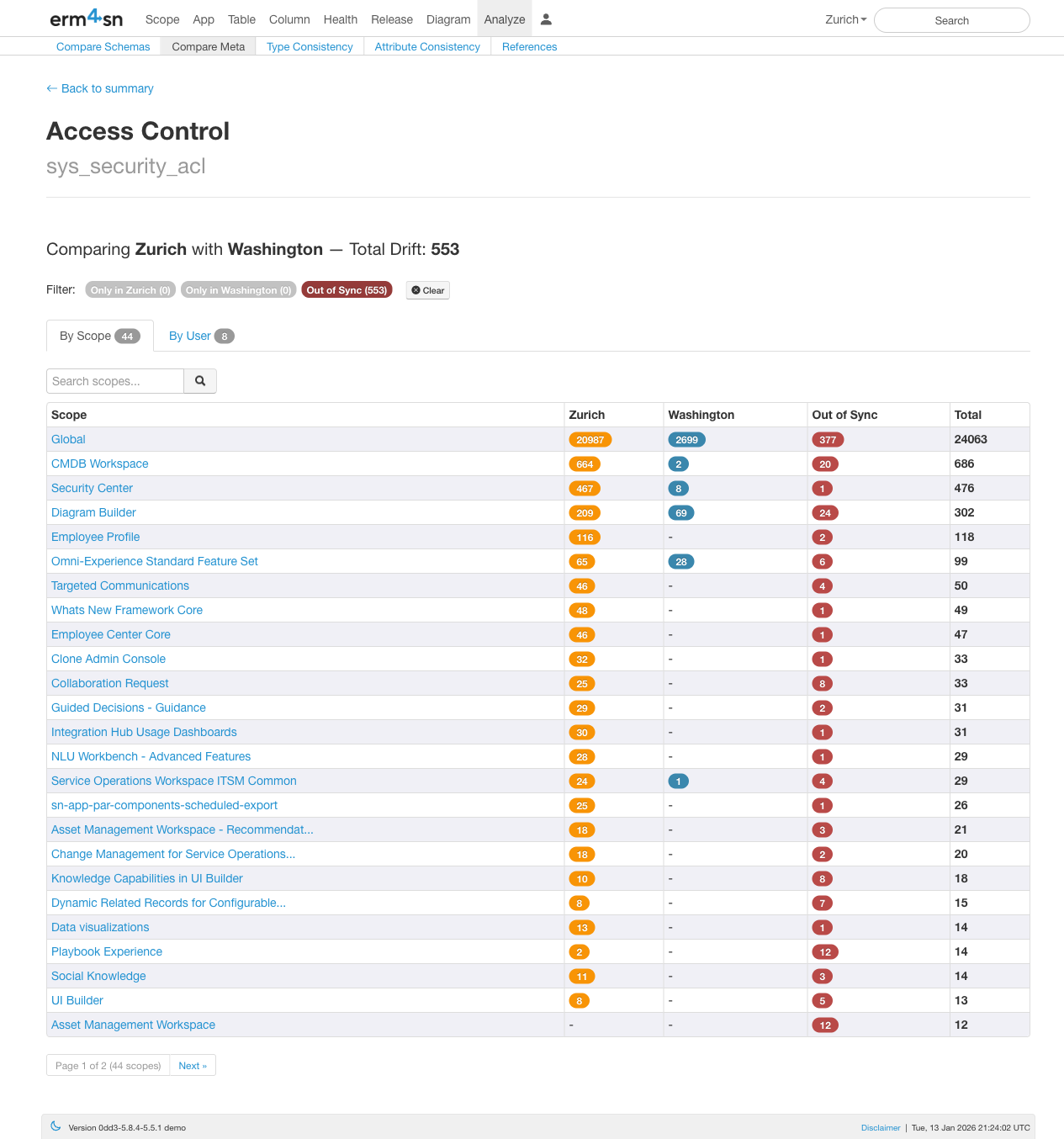
When you click on an artifact type, the detail view shows exactly which records are different and who owns them. In this example, drilling into Access Control reveals 553 out-of-sync records across 44 scopes. You can quickly see that the "Global" scope has the most drift (377 records), while scopes like "CMDB Workspace" and "Diagram Builder" have smaller discrepancies. Switch to the By User tab to see which team members made the changes.
Compare Schemas
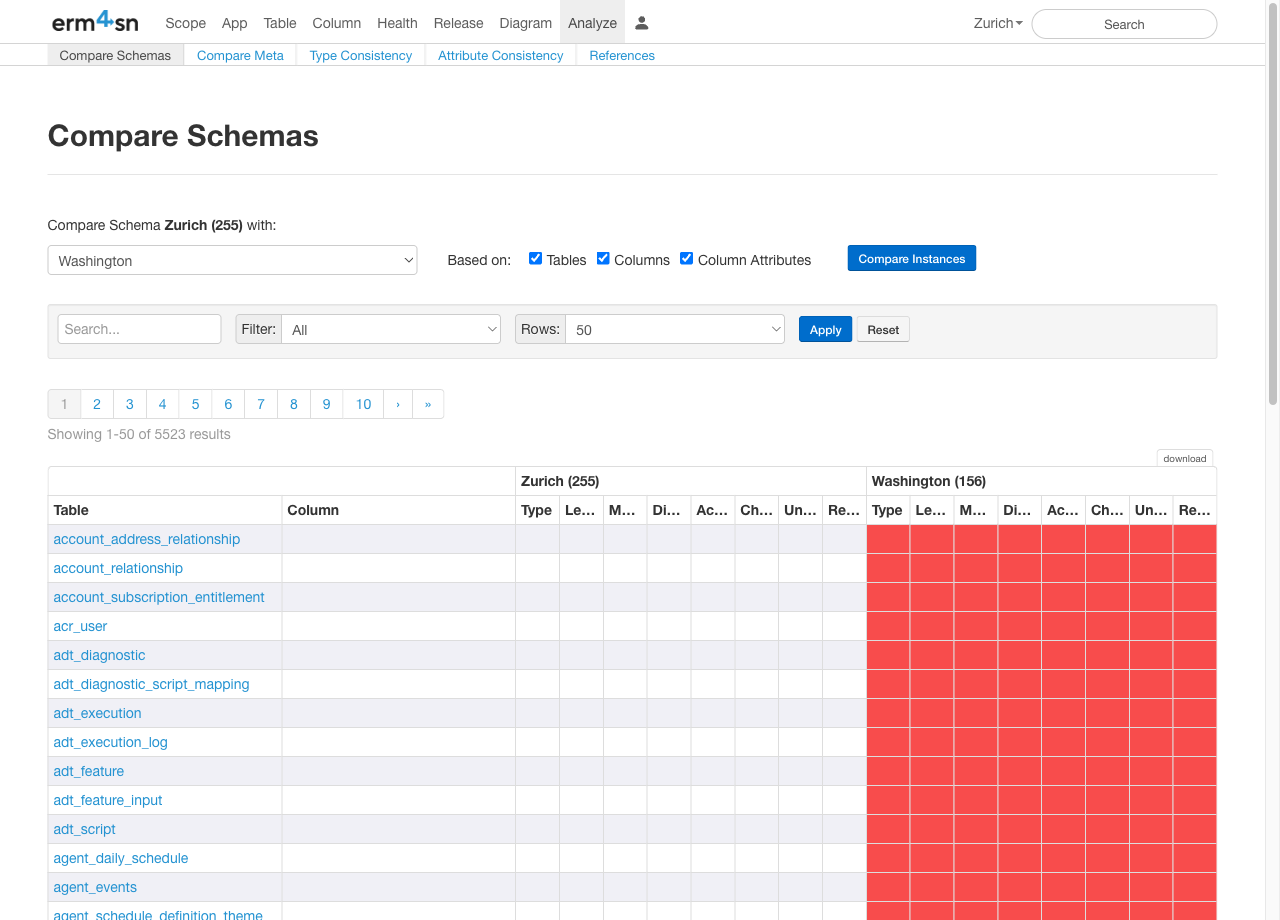
The Schema Comparison tool allows you to compare the structure of your current ServiceNow instance with another instance. This helps identify differences in tables, columns, and attributes, ensuring consistency across environments.
How to Perform a Schema Comparison
-
Select a Target Instance
- Choose a ServiceNow instance to compare your current schema against.
-
Choose the Comparison Level
- Attributes: Highlights table columns where attributes differ (e.g., data type, length).
- Columns: Displays columns that exist in one instance but are missing in the other.
- Tables: Shows missing tables on either side of the comparison.
-
Run the Comparison
- Click the Run button to execute the schema comparison.
- The results will display differences in a structured format.
-
Download the Report
- Click Download to export the comparison results as an Excel sheet for further analysis.
Type Consistency
The Type Consistency tool provides an overview of field type and length combinations across your schema. This helps ensure that similar attributes are consistently defined.
How to Use Type Consistency Analysis
-
View Type Summary
- Browse the list of all detected type and length combinations.
-
Analyze Specific Types
- Click on a type name to see where this combination is used across the schema.
-
Download the Report
- Click Download to export the results as an Excel sheet for further evaluation.
Attribute Consistency
The Attribute Consistency tool helps find attributes with similar names that may have been inconsistently defined across tables.
How to Use Attribute Consistency Analysis
-
Enable Derived Attribute Analysis (Optional)
- Select Analyze Derived Attributes to only show attributes in the same hierarchical structure with similar names.
-
Run the Analysis
- Click Run to generate a list of attributes with similar names but potentially different definitions.
References
The References tool helps identify missing or inaccessible referenced tables. This is useful for troubleshooting issues where tables are expected but not found.
How to Use the References Analysis
-
View Missing References
- The tool displays a list of referenced tables that were not collected during data import.
-
Investigate Missing Tables
- A missing reference can indicate that the table:
- Does not exist in ServiceNow.
- Was not included in the data collection process.
- Is restricted due to insufficient API credentials.
- A missing reference can indicate that the table:
-
Resolve Missing References
- Verify that the table exists and is accessible in your ServiceNow instance.
- Ensure that the REST API credentials used for data collection have sufficient privileges to read the table.